
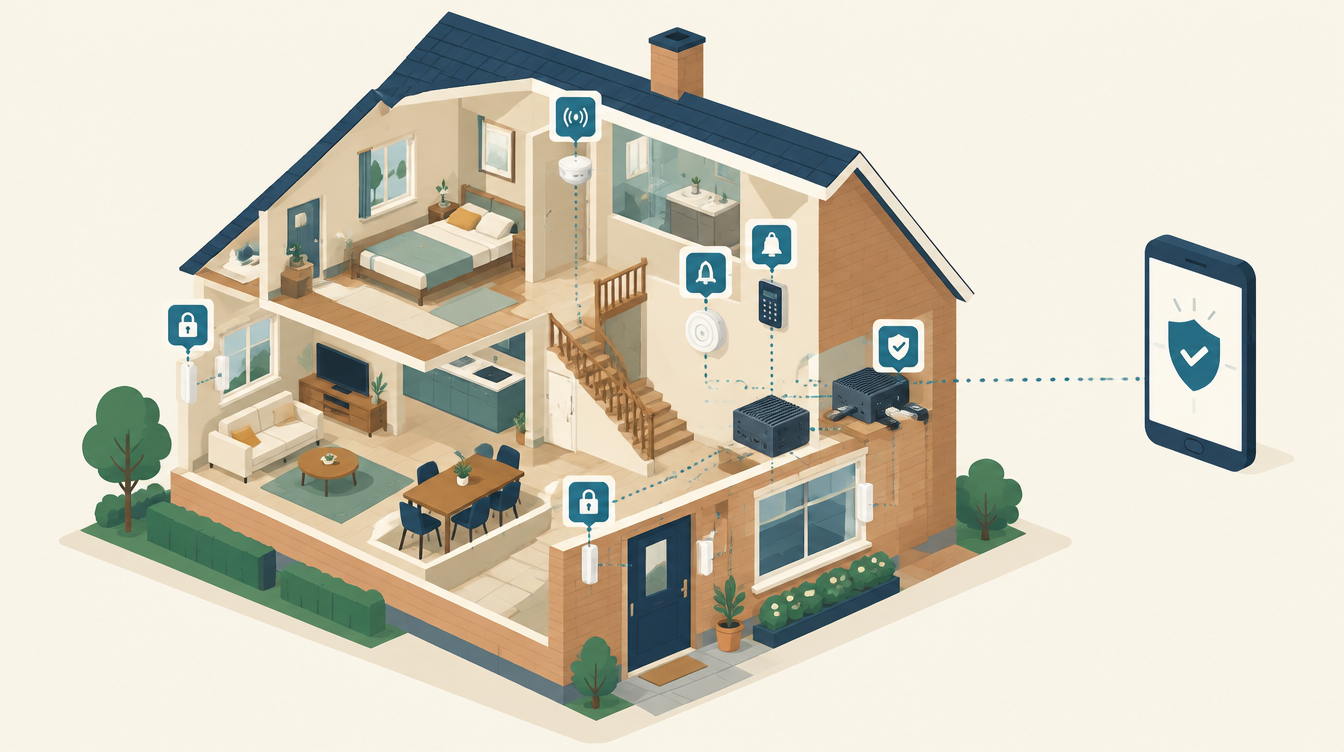
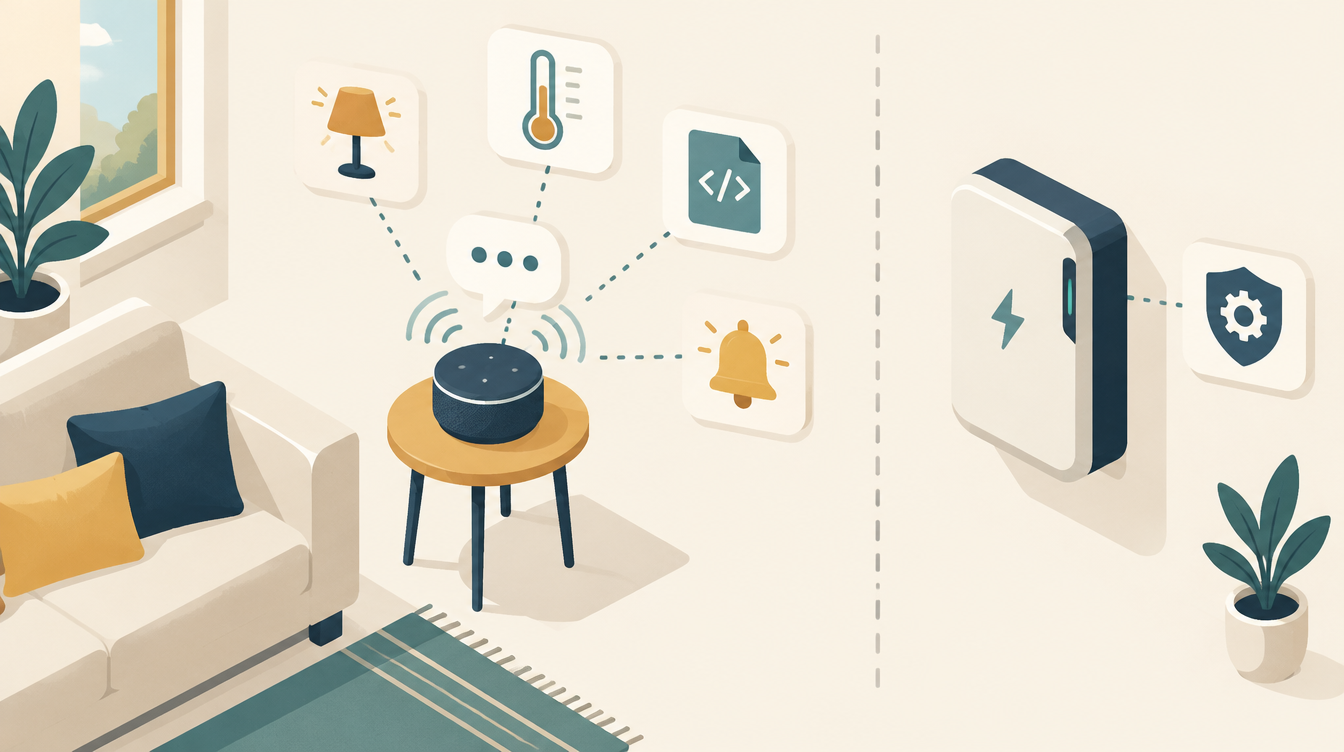
You build an alarm system with Home Assistant from three things: sensors that notice something, an alarm panel that decides, and a siren and notification that act. You connect the sensors and the siren via Zigbee or Z-Wave. The panel is an alarm control panel in Home Assistant, easiest with the Alarmo integration. In this article you will read which parts you need, how to set it up, and where a DIY alarm like this is weak.
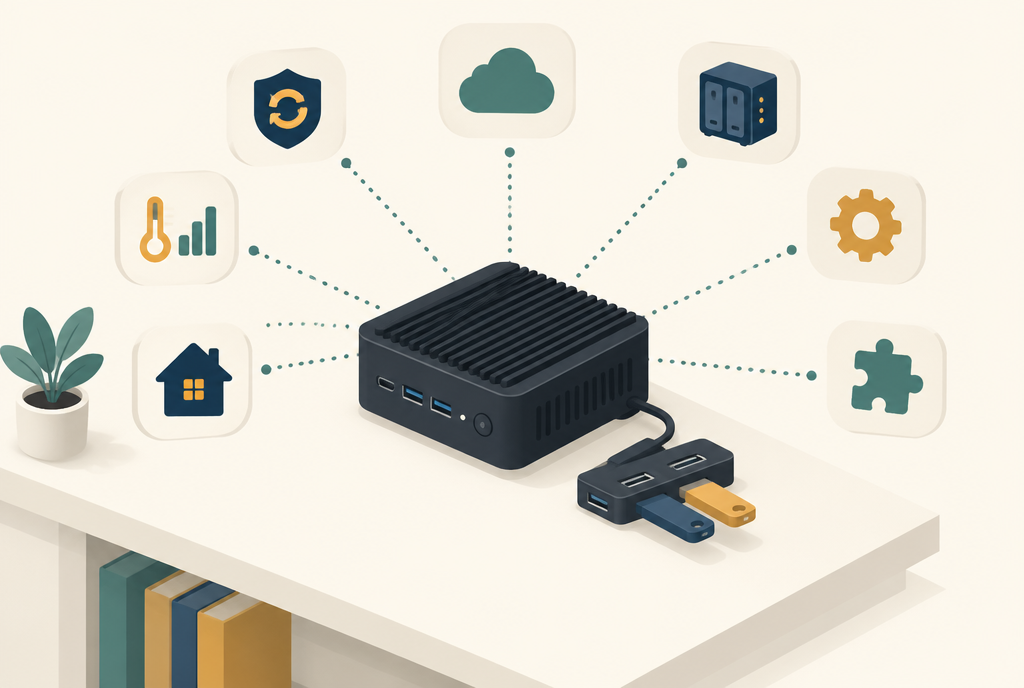
I already have the basics in place: a Home Assistant server with a Zigbee stick and a Z-Wave stick. You can read what that looks like in Z-Wave in Home Assistant next to my Zigbee stick. The alarm is built on top of that.
Can Home Assistant be a real alarm system?
Yes, with one caveat. Home Assistant can arm, disarm, count down an entry delay, sound a siren and make your phone beep. For scaring off burglars and warning yourself, that works fine.
What it is not: a certified alarm system with monitoring by an alarm receiving centre. Some insurers require that for more valuable home contents, for example a system with a Borg certificate (the Dutch certification scheme). A DIY alarm does not count for that. So check your policy first before you replace an existing alarm.
How an alarm system works in Home Assistant
Every alarm, including a bought system, uses the same building blocks:
- Sensors. Door and window contacts, motion sensors and possibly glass-break or vibration sensors. They only report: open, closed, motion.
- The panel. In Home Assistant that is an entity of the type
alarm_control_panel. It has modes such as disarmed, away, home and night, and decides whether a sensor sets off the alarm. - Control. A keypad by the front door, a button on your dashboard or the app on your phone.
- Response. An indoor siren (and possibly an outdoor one), lights that switch on, and a notification on your phone.
Zigbee or Z-Wave for your alarm?
Both work. I use both at home, and for an alarm each has its own strength:
- Zigbee is cheap and there is a lot of choice. A door contact costs little, so you can secure every window. Downside: Zigbee runs on 2.4 GHz, just like Wi-Fi, and sometimes suffers from interference there.
- Z-Wave runs on 868 MHz in Europe. It gets through walls and floors better and is not affected by Wi-Fi. With S2 security the traffic is encrypted. The devices are more expensive, though.
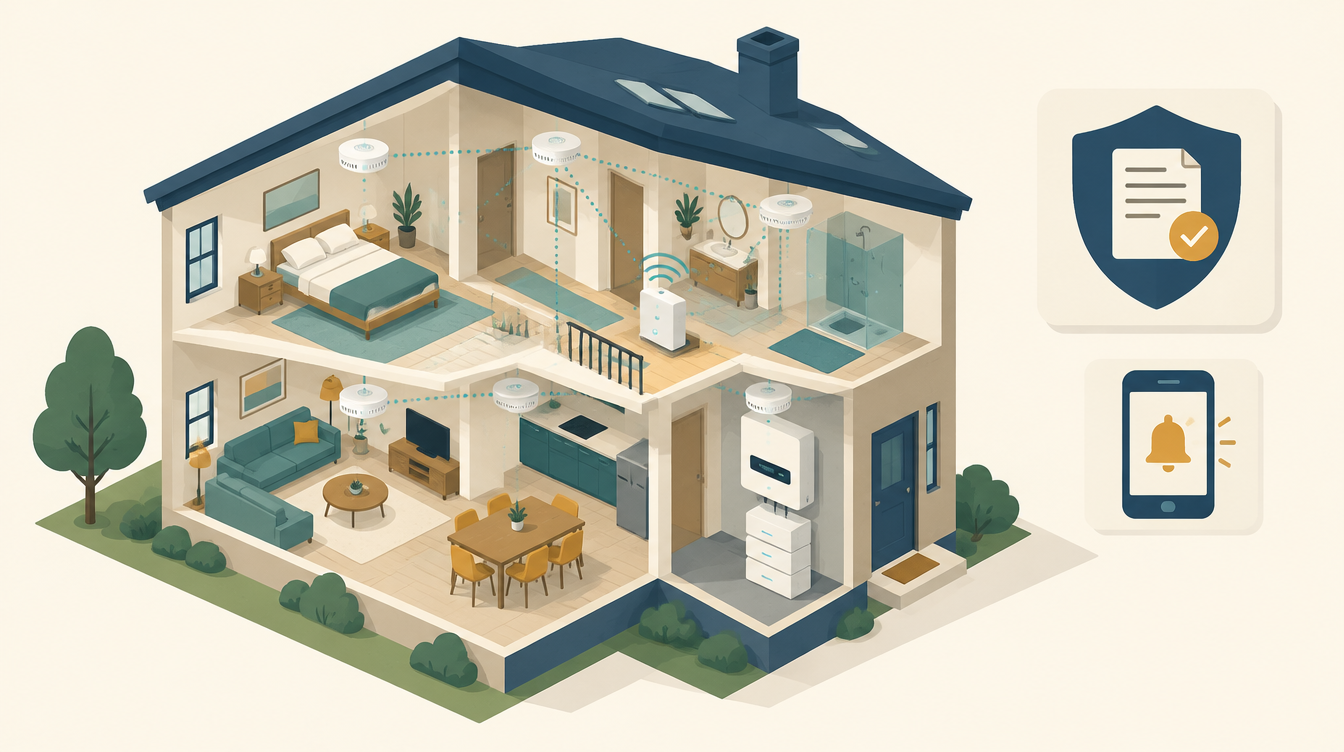
My advice: for the sensors you need many of (window contacts), take whatever is cheapest and most reliable in your home, and choose a mains-powered device for the siren and the keypad. Mains-powered devices act as repeaters in the mesh network. That makes the network stronger, including for the battery-powered sensors.
Which parts do you need?
Door and window contacts
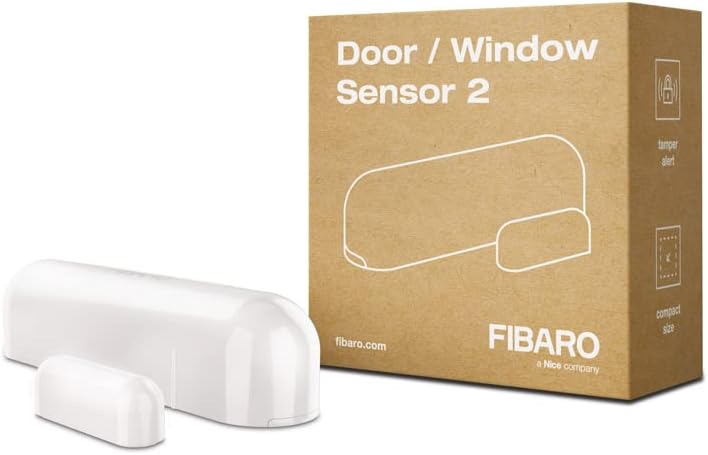
A magnetic contact is the most reliable sensor there is. It is open or closed, and false alarms hardly ever happen. Put one on every outside door and on the windows that can be reached from the ground. Zigbee contacts from, for example, Aqara, Sonoff or IKEA are small and cheap. For Z-Wave there are contacts from Aeotec and Fibaro, among others, such as the Fibaro Door/Window Sensor 2. It also has a tamper switch: it reports when someone opens the housing or pulls the sensor off the door.
Still have Fibaro sensors from a Home Center? They speak Z-Wave and work fine in Home Assistant. How I moved my old system over is in from Fibaro to Home Assistant.
Motion sensors
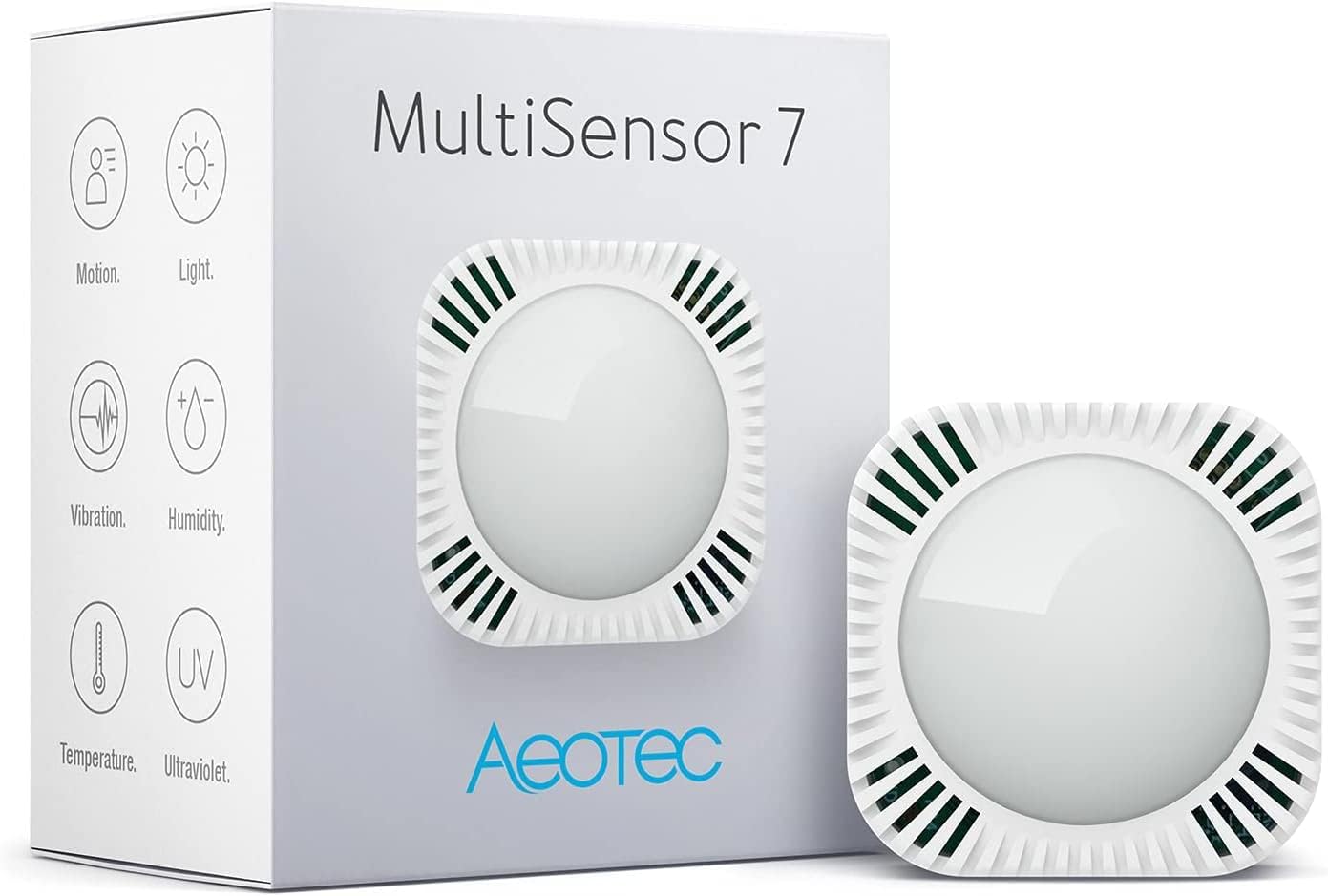
A PIR motion sensor catches what the contacts miss, such as someone coming in through a first-floor window. Mount it in the hall or on the landing, where everyone has to pass. If you have a cat or dog, choose a pet-friendly sensor, or only use motion sensors in ‘away’ mode in places the animal does not go. A sensor that does more is the Aeotec MultiSensor 7 (Z-Wave). Besides motion, it measures temperature, light, humidity, vibration and UV. It runs on batteries or via a USB cable. The vibration sensor works as a tamper alert: if someone takes it off the wall, you see it straight away. And you simply use the other readings for lighting and climate.
A siren
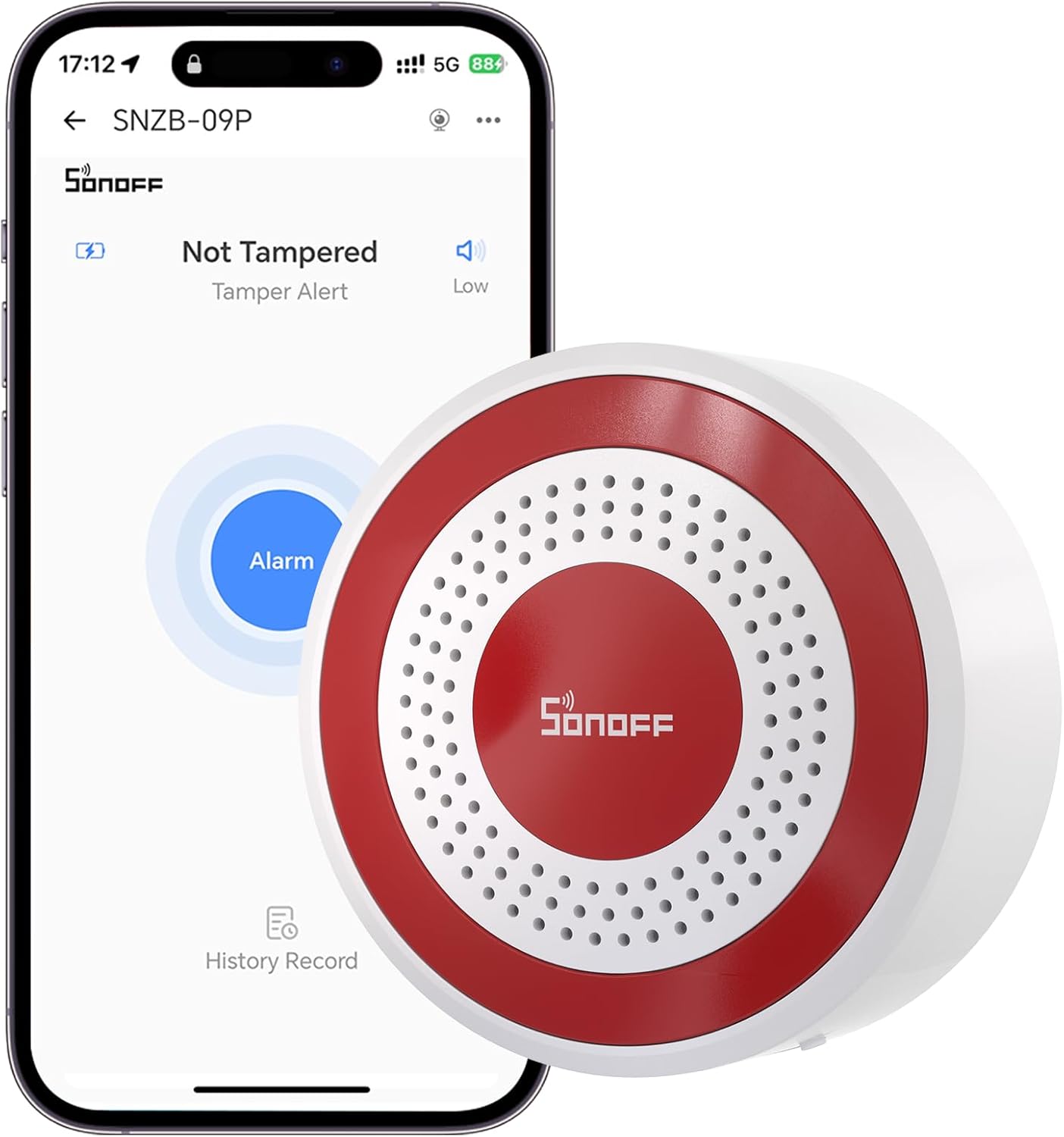
Without sound it is not an alarm, just a notification. An indoor siren is enough to drive off most burglars. Choose a mains-powered model with its own backup battery. Zigbee and Z-Wave sirens usually show up in Home Assistant as a siren entity, which you can switch on and off. An affordable Zigbee siren is the SONOFF SNZB-09P: up to 105 dB, ten siren tones, a flashing red light and power via USB-C or a battery. It is a new model, so check whether your Zigbee integration fully supports it yet.
A keypad (optional, but nice)
You can control the alarm with the app, but a keypad by the door is easier for the whole family. You enter a code, and the keypad beeps during the exit and entry delay. There are Zigbee and Z-Wave keypads that work with Home Assistant. Check beforehand whether the model is supported in your integration (ZHA, Zigbee2MQTT or Z-Wave JS).
The server and the sticks
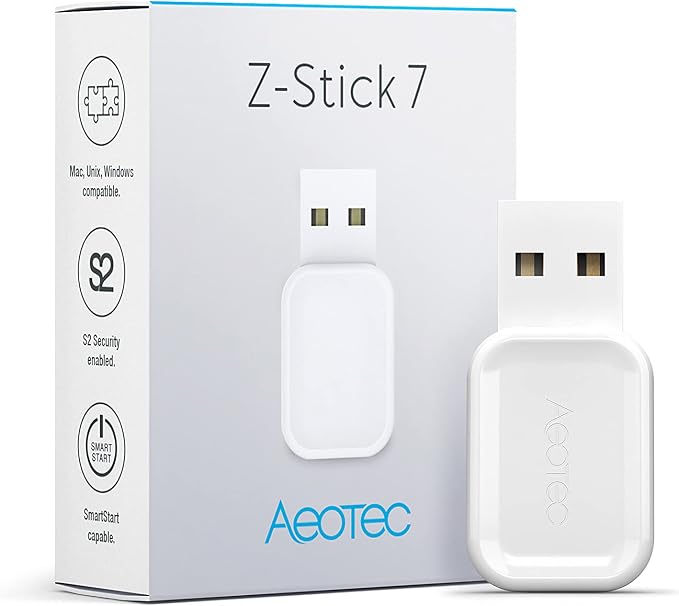
My Home Assistant runs on a MeLE Quieter 4C mini PC. For Zigbee I use the Aeotec Zi-Stick, for Z-Wave the Aeotec Z-Stick 7. Just starting out? A Home Assistant Green with a Zigbee stick is a fine start too.
The alarm panel: Alarmo or the built-in manual panel
For the panel you have two options. Both create an alarm_control_panel entity.
Option 1: Alarmo (recommended)
Alarmo is a free integration that you install via HACS. You set everything up in its own panel in Home Assistant, without YAML. What Alarmo does well:
- Modes. Away, home, night and vacation. For each mode you choose which sensors take part. At night, for example, only the doors and the downstairs windows, so you can walk around freely upstairs.
- Exit and entry delay. Per mode and per sensor. The front door gets an entry delay, the back window does not.
- Open sensors. If a window is still open when you arm, Alarmo refuses, or it tells you which window it is. You can set that per sensor.
- Always active. Sensors such as a tamper switch can count 24 hours a day, even when the alarm is off.
- Users and codes. Each user gets their own PIN, and you can see who disarmed the alarm.
- Actions and notifications. Siren on when the alarm goes off, a notification when arming fails, lights on when someone comes in. You click it all together.
Installing works like this: search HACS for Alarmo, install it, restart Home Assistant and add the integration via Settings → Devices & services. Alarmo then appears in the sidebar.
Option 2: the built-in manual panel
If you do not want HACS, Home Assistant itself has the manual alarm panel. You configure it in YAML. It knows the modes and the delays, but which sensor sets off the alarm is something you arrange yourself with automations. An example:
# configuration.yaml (or a package)
alarm_control_panel:
  - platform: manual
    name: Huisalarm
    code: !secret alarm_code
    arming_time: 30     # exit delay in seconds
    delay_time: 30      # entry delay in seconds
    trigger_time: 180   # siren for 3 minutes at most
    disarmed:
      trigger_time: 0   # disarmed = never go off
    armed_home:
      arming_time: 0
      delay_time: 0
    armed_night:
      arming_time: 0
Put the code in secrets.yaml, not in the configuration itself. That way it does not end up in a backup or screenshot that you share either.
The automations: triggering the alarm and responding
If you use Alarmo, it handles the triggering itself. With the manual panel you need an automation that triggers the alarm when a sensor reports something while the alarm is armed:
automation:
  - alias: "Alarm: sensor triggered while armed"
    triggers:
      - trigger: state
        entity_id:
          - binary_sensor.voordeur_contact
          - binary_sensor.achterdeur_contact
          - binary_sensor.raam_keuken_contact
          - binary_sensor.beweging_hal
        to: "on"
    conditions:
      - condition: state
        entity_id: alarm_control_panel.huisalarm
        state:
          - armed_away
          - armed_night
    actions:
      - action: alarm_control_panel.alarm_trigger
        target:
          entity_id: alarm_control_panel.huisalarm
The alarm first goes to pending: the entry delay is running. If you disarm it during that time, nothing happens. If not, it goes to triggered. The second automation responds to that, and you can use it with both options:
  - alias: "Alarm: triggered"
    triggers:
      - trigger: state
        entity_id: alarm_control_panel.huisalarm
        to: triggered
    actions:
      - action: siren.turn_on
        target:
          entity_id: siren.sirene_hal
      - action: light.turn_on
        target:
          area_id: woonkamer
      - action: notify.mobile_app_mijn_telefoon
        data:
          title: "Alarm!"
          message: "The alarm has gone off. Check the camera or call the neighbours."
          data:
            # iPhone: critical notification, also gets through on silent
            push:
              sound:
                name: default
                critical: 1
                volume: 1.0
            # Android: high-priority notification
            ttl: 0
            priority: high
            channel: alarm_stream

  - alias: "Alarm: disarmed, siren off"
    triggers:
      - trigger: state
        entity_id: alarm_control_panel.huisalarm
        to: disarmed
    actions:
      - action: siren.turn_off
        target:
          entity_id: siren.sirene_hal
With Alarmo the entity is called alarm_control_panel.alarmo by default. Change the names of the sensors, siren and phone to your own. You do have to allow critical notifications on the iPhone first, in the settings of the Home Assistant app.
Extra: arm the alarm automatically when everyone has left
Forgetting to arm is the most common mistake with an alarm. Home Assistant knows who is home through the app on your phone. The zone.home entity counts how many people are in the home zone. If it stays at 0 for ten minutes, this automation sets the alarm to away:
  - alias: "Alarm: arm automatically when everyone has left"
    triggers:
      - trigger: numeric_state
        entity_id: zone.home
        below: 1
        for:
          minutes: 10
    conditions:
      - condition: state
        entity_id: alarm_control_panel.huisalarm
        state: disarmed
    actions:
      - action: alarm_control_panel.alarm_arm_away
        target:
          entity_id: alarm_control_panel.huisalarm
      - action: notify.mobile_app_mijn_telefoon
        data:
          title: "Alarm armed"
          message: "Everyone has left. The alarm is set to away."
A few points to watch:
- Location on. Every resident needs the Home Assistant app with location access, linked to a person under Settings → People.
- The waiting time. The ten minutes absorb jumping GPS, and the moment you walk back for your keys.
- People without a phone. Children, a babysitter or a guest without the app do not count. If only someone like that is home, the alarm still arms. In that case, create a Guest home switch (an
input_boolean) and add it as an extra condition in the automation. - Code for arming. The manual panel with a code refuses to arm without the code. So set
code_arm_required: falsein the configuration. In Alarmo you switch off the code for arming. - An open window. If a window is still open, Alarmo may refuse to arm. Create a notification in Alarmo for ‘arming failed’, so you know the alarm is not on.
And disarming automatically when you get home? I advise against it. A phone can be stolen, and GPS can be wrong. Disarm with a code on the keypad or in the app. What is useful: a notification when you get home while the alarm is still armed.
Where a DIY alarm is weak (and what you can do about it)
This is the part most guides skip. An alarm is only good if it also works at the moment something goes wrong.
- A sensor that silently drops out. A window contact with a flat battery or no connection reports nothing. The most dangerous part is that you do not notice. Create a notification when a sensor becomes
unavailableor when a battery drops below 20%. I describe the same principle for my energy system: how I notice when my system does something wrong. - Power cuts. No power means no server, no sticks and no router. Put those three on a small UPS. The sensors themselves run on batteries; the siren preferably has its own backup battery.
- No internet. The alarm itself keeps working locally: sensors, panel and siren do not need the internet. Only the notification on your phone will not arrive.
- Radio jamming. In theory every wireless system can be jammed, including a bought alarm. Z-Wave with S2 is harder to abuse than an unencrypted protocol, but it does not make jamming impossible.
- Remote disarming. Anyone who can get into your Home Assistant can disarm your alarm. Use two-factor authentication, and set a code for disarming. Let a voice assistant or AI integration arm the alarm at most, never disarm it. So do not simply expose the alarm panel to your voice assistant.
- The siren and the neighbours. Do not let the siren wail endlessly. Many Dutch municipalities have rules in their local bylaws (APV) on how long an alarm may make noise. A few minutes is enough; that is why
trigger_timein the example is set to 180 seconds.
Fire is a separate story. Smoke alarms must sound by themselves, even if Home Assistant fails. How I solved that with six interconnected X-Sense alarms is in home battery fire safety.
Step-by-step plan in short
- Make sure Zigbee (ZHA or Zigbee2MQTT) or Z-Wave JS is running in Home Assistant.
- Pair the mains-powered devices first (siren, keypad), then the battery-powered sensors.
- Give every sensor a clear name, such as Front door contact or Hall motion.
- Install Alarmo via HACS, or create a manual panel in YAML.
- Choose per mode which sensors take part, and set the exit and entry delays.
- Create the responses: siren, lights and a critical notification on your phone.
- Optional: let the alarm switch to away automatically when everyone has left.
- Build the monitoring: notifications for flat batteries and sensors that drop out.
- Test everything. Arm, walk outside, come back in, and let the alarm really go off once. Repeat that a few times a year.
Frequently asked questions
Is an alarm system with Home Assistant as good as a bought alarm?
For detection and deterrence it can be just as good: the sensors are often the same kind. The difference lies in certification, monitoring by an alarm receiving centre and maintenance. With a DIY alarm, you are the installer and the monitoring centre.
Will my insurer accept a DIY alarm?
Usually not if the policy requires a certified alarm system. If your policy has no such requirement, it makes no difference for the insurance. Ask if in doubt.
Alarmo or the built-in manual panel?
Alarmo, unless you really do not want HACS. Alarmo handles modes, sensors per mode, open windows when arming and user codes without you having to build automations yourself.
Can I mix Zigbee and Z-Wave in one alarm?
Yes. Home Assistant only sees entities, not protocols. A Zigbee window contact and a Z-Wave siren simply work together in the same panel. You do need a separate stick for each protocol.
Does the alarm work without internet?
Yes. Zigbee, Z-Wave and Home Assistant work locally. Only notifications on your phone when you are away from home need the internet.
Can the alarm arm automatically when everyone has left?
Yes. With the app on everyone’s phone, Home Assistant knows who is home. If the home zone is empty for ten minutes, an automation sets the alarm to away. The example is above, with the automations.
What I use
- MeLE Quieter 4C mini PC: view on Amazon. My Home Assistant server: quiet, efficient and always on.
- Aeotec Zi-Stick (Zigbee USB stick): view on Amazon. For Zigbee sensors such as door and window contacts.
- Aeotec Z-Stick 7 (Z-Wave USB stick): view on Amazon. For Z-Wave devices with S2 security.
- UGREEN 4-port USB hub: view on Amazon. Keeps the sticks a little way from the PC.
- Fibaro Door/Window Sensor 2 (Z-Wave door and window contact): view on Amazon. Door contact with tamper alert.
- Aeotec MultiSensor 7 (Z-Wave): view on Amazon. Motion, temperature, light, humidity, vibration and UV in one sensor.
- SONOFF SNZB-09P (Zigbee siren): view on Amazon. Up to 105 dB, on USB-C or battery.
This article contains affiliate links. As an Amazon Associate I earn from qualifying purchases. The price stays the same for you.
This works in my situation: Home Assistant on a MeLE Quieter 4C with an Aeotec Zi-Stick and an Aeotec Z-Stick 7. A DIY alarm is not a certified alarm system and does not replace smoke alarms. Integrations, firmware and your insurer’s requirements may differ. Check it against your own documentation.

Leave a Reply