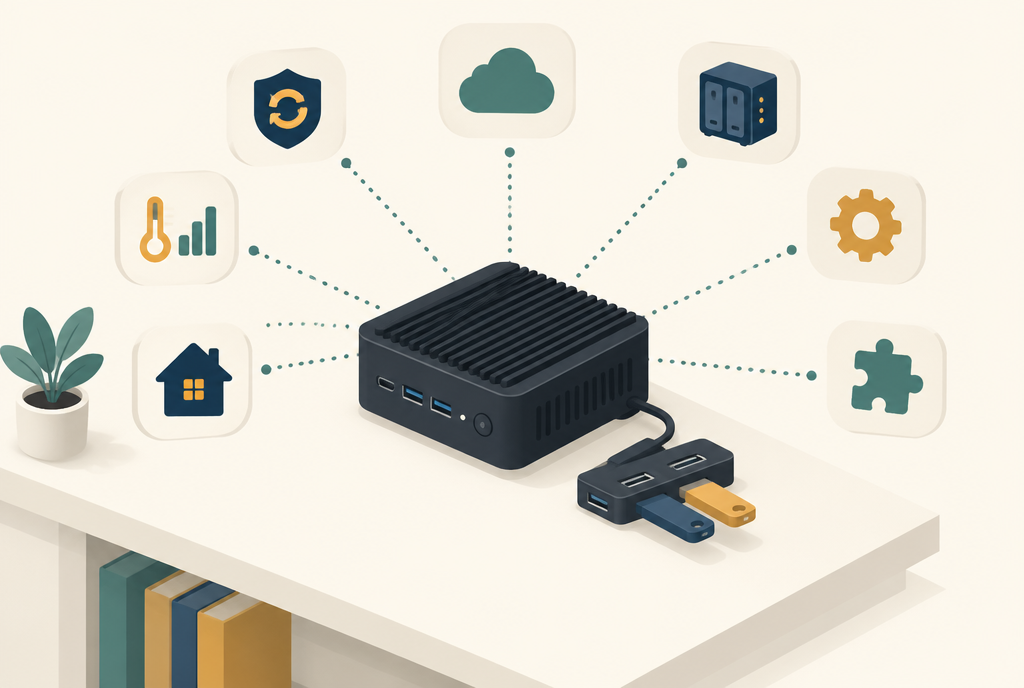
Home Assistant on a mini PC is, for me, the best foundation for a smart home. Everything in my house runs on one silent, fanless box: the home battery, the heat pump, the EV charger, Zigbee and Z-Wave. In this post you will read how that mini PC works, how to install Home Assistant OS on it as well as possible, how to have a backup from day one that survives a broken disk, and which apps and integrations you should enable at minimum.
New to Home Assistant? Then read What is Home Assistant? first. It explains the terms used below, such as integration, entity and automation.
The short answer
- In the BIOS, enable UEFI, disable Secure Boot and turn on power on after power loss.
- Write the Home Assistant OS image for generic x86-64 to the internal disk, preferably an NVMe SSD.
- Give the mini PC a fixed IP address in your router and connect it with a cable.
- Turn on automatic backups right away, store the encryption key, and keep at least one copy off the device.
- Enable at minimum: System Monitor, the mobile app for notifications, a file editor, Terminal & SSH and secure remote access.
Why a mini PC for Home Assistant?
Home Assistant runs on many kinds of hardware. A Raspberry Pi works, and the Home Assistant Green is the easiest start: unpack it, plug it in and you are done. But as soon as you want more than switching lights, you quickly end up with a mini PC. These are the reasons:
- Computing power. Add-ons (since 2026 they are called apps) such as EMHASS calculate a plan every 15 minutes. On a Raspberry Pi that takes a long time. On a mini PC with four cores it is quick.
- A real SSD. The Home Assistant database writes constantly. An SD card wears out quickly from that. A mini PC has an M.2 slot for an NVMe SSD.
- Enough USB ports. A Zigbee stick, a Z-Wave stick and RS485 adapters for Modbus all fit.
- Efficient. A modern mini PC uses a few watts. That matters for a device that is on all year.
My mini PC: the MeLE Quieter 4C
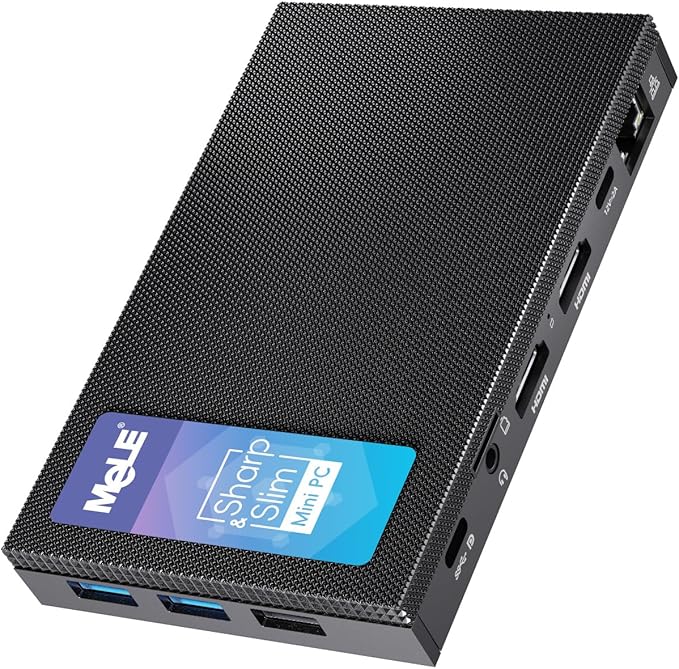
My Home Assistant runs on a MeLE Quieter 4C. I chose it because it has no fan. So it makes no noise, and there is nothing inside that collects dust or breaks. The case is the heatsink.
| Part | MeLE Quieter 4C | What it means for Home Assistant |
|---|---|---|
| Processor | 4 cores | Enough for Home Assistant with heavy apps such as EMHASS |
| Memory | 8 GB | Plenty, even with a handful of apps |
| Storage | 128 GB eMMC plus an M.2 slot | An NVMe SSD fits in the M.2 slot. It copes better with the many writes of the database. |
| Network | Gigabit Ethernet | A server belongs on a cable, not on Wi-Fi |
| Power supply | 12 V, 2 A | Never more than 24 W, in practice a lot less |
The sticks are not plugged directly into the mini PC, but into a UGREEN USB hub with a cable. That way they sit a little away from the PC, which helps against 2.4 GHz interference. Which sticks are connected, and why, is in Z-Wave in Home Assistant: the Aeotec Z-Stick 7 next to my Zigbee stick.
How Home Assistant works on a mini PC
The mini PC does not run Windows, but Home Assistant OS. That is a small operating system whose only job is to run Home Assistant. It has three layers:
- The operating system, which updates itself. You do not have to manage it.
- The Supervisor, which installs and updates apps, makes backups and keeps an eye on whether everything is running.
- Home Assistant Core, the program itself, with your integrations, automations and dashboards.
There are other installation types too, such as Home Assistant in a Docker container. That one lacks the Supervisor, and with it the apps and the full backups. For a mini PC dedicated to Home Assistant, I always recommend Home Assistant OS.
Installing Home Assistant on a mini PC, step by step
What you need
- The mini PC, with a network cable to your router.
- A monitor and keyboard, temporarily.
- A USB stick of at least 8 GB. Everything on it will be erased.
- Another computer to prepare the stick.
Step 1: the SSD first, then install
Want to use an NVMe SSD? Fit it before the installation. Moving to another disk later is possible, but only via a backup and a reinstall. That is more work than doing it right straight away.
Step 2: set up the BIOS
Start the mini PC and press Del or F2 a few times straight away to enter the BIOS. The names differ per brand, but these are the three settings that matter:
- Boot mode UEFI. Home Assistant OS only boots via UEFI.
- Secure Boot off. Otherwise the mini PC refuses to start Home Assistant OS.
- Power on after power loss. Often called Restore on AC Power Loss or State After G3, with the value Power On or S0. Many people forget this one. If the power drops for a moment, your house otherwise stays without Home Assistant until you press the button.
Step 3: put Home Assistant OS on the internal disk
With a mini PC that has eMMC, you cannot take the disk out. So you write the image to the internal disk from a temporarily booted Linux system. This is also the method Home Assistant describes itself:
- Use balenaEtcher to put a live version of Ubuntu on the USB stick.
- Boot the mini PC from the stick and choose Try Ubuntu. Nothing gets installed yet.
- In Ubuntu, download the generic x86-64 image from the Home Assistant installation page.
- Open the Disks app, select the internal disk and then Restore Disk Image. Select the downloaded file.
- Check twice that you picked the right disk. If you have both eMMC and an SSD, choose the SSD.
- Shut down the mini PC, remove the USB stick and start it again.
After a minute or two, the Home Assistant banner with an address appears on the screen. The monitor and keyboard can go after that.
Step 4: opening it for the first time
On another computer, go to http://homeassistant.local:8123. If that does not work, look up the IP address in your router and use http://<ip-address>:8123. The first time, Home Assistant downloads the latest version. That can take up to twenty minutes.
Then you create an account and set your location, time zone and units. Notice the option to restore a backup. You do not need it now, but it is exactly the route if you ever move to a new mini PC.
Step 5: a fixed IP address
Give the mini PC a fixed address in your router (a DHCP reservation). Many devices and apps talk to Home Assistant via its IP address. If it changes after a router restart, all kinds of things suddenly stop working.
Home Assistant backup: get a good one from day one
You set up backups on day one, not when something goes wrong. A failed update, a YAML experiment or an SSD that dies: with a good backup you are back within half an hour. Without one you start over, and you have to pair all your Z-Wave devices again, for example.
What is in a backup
A full backup contains your settings, integrations, automations, dashboards, the history (database) and the apps with their own settings. Think of the Z-Wave keys in Z-Wave JS and the EMHASS configuration. Restore that backup on a new mini PC and everything is back the way it was.
Turning on automatic backups
- Go to Settings → System → Backups and start setting up automatic backups.
- Store the encryption key. Home Assistant encrypts backups that leave the device. Without that key you cannot restore such a backup. Download the file and put the key in your password manager. Not only on the mini PC itself.
- Choose daily and keep a week of backups. If something goes wrong that you only notice after a few days, you can still go back.
- Include the history and all apps in the backup.
- Choose where the backups go. More on that below.
At least one copy off the mini PC
A backup that only lives on the mini PC helps after a failed update. But if the disk breaks, you lose it together with Home Assistant. So always make sure there is a copy somewhere else. You can pick several locations at once:
| Location | How | Good to know |
|---|---|---|
| On the mini PC | On by default | Quickly back after a failed update, but gone if the disk breaks |
| Home Assistant Cloud | With a subscription, if you already have one for remote access | Only keeps the latest backup, with a maximum size |
| NAS at home | Settings → System → Storage, add network storage (SMB or NFS) | Stays in the house and has room for a week of backups |
| Google Drive or OneDrive | Via that service’s integration | Out of the house, so also safe in case of fire or theft |
My advice: local plus at least one location off the mini PC. If you want to do it properly, follow the 3-2-1 rule: three copies, on two types of storage, one of them off-site.
A backup before every update
When you update Home Assistant or an app, there is a checkbox to make a backup first. Leave it on. A new version of Home Assistant comes out every month, and very occasionally something breaks. Read the release notes before updating too: that is where the breaking changes are listed.
A notification when the backup failed
A backup that has been quietly failing for weeks is the most dangerous kind of backup. The backup integration creates sensors, including one for the last successful automatic backup. With this automation I get a notification on my phone when it is older than two days:
alias: Notify when the backup is too old
triggers:
  - trigger: time
    at: "09:00:00"
conditions:
  - condition: template
    value_template: >
      {% set t = states('sensor.backup_last_successful_automatic_backup') | as_datetime(none) %}
      {{ t is none or now() - t > timedelta(days=2) }}
actions:
  - action: notify.mobile_app_your_phone
    data:
      title: Home Assistant backup
      message: The last successful backup is older than two days.
Check under Developer tools → States what the sensor is called on your system, and replace notify.mobile_app_your_phone with your own phone. I use the same principle, monitoring instead of hoping, for my whole energy system. Read about it in Home Assistant energy monitoring: how I notice when my energy system gets it wrong.
Test a restore once
You only know a backup works once you have restored it. Download a backup to your computer and check that you can find the encryption key. Have an old laptop or a Raspberry Pi lying around? Then try restoring the backup there, via the restore option during the first setup.
Which apps and integrations should you enable at minimum?
Home Assistant can do thousands of things. Start small. This is the list I enable first on every new installation, before the first light or sensor.
1. Advanced mode
Click your name in the bottom left and turn on Advanced mode. Only then do you see all settings, including apps that are hidden from beginners, such as the extended version of Terminal & SSH.
2. System Monitor
Add the System Monitor integration via Settings → Devices & services. It shows processor load, memory, free disk space and the temperature of the mini PC. On a fanless mini PC I mainly watch the temperature. And a full disk is a classic cause of failed backups.
3. The mobile app
Install the Home Assistant app on your phone. No app means no push notifications, and without notifications you do not know something is wrong. The app also adds your phone as a device, with your battery level and whether you are home, among other things.
4. A file editor
Sooner or later you will edit configuration.yaml. For that, install the File editor app via Settings → Apps, or the more extensive Studio Code Server. Pick one. I work a lot with packages: one YAML file per topic. How I write and review them together with Claude is in How I use Claude for Home Assistant automations.
5. Terminal & SSH
The Terminal & SSH app gives you a command line. You need it when the normal interface stops responding, for example to restart Home Assistant with ha core restart or to read the logs with ha core logs. Also useful: ls -l /dev/serial/by-id/ shows the fixed names of your USB sticks. Always use those names instead of /dev/ttyUSB0. Why is explained in Modbus “Errno 11: exclusively lock port”.
6. Secure remote access
Never just open a port in your router. I use Home Assistant Cloud: secure remote access without the hassle of certificates, and it supports the development. The voice control of my Home Assistant Voice Preview Edition also runs through it. If you do not want a subscription, a VPN such as WireGuard or Tailscale is a good alternative.
7. Recorder: keep the database small
By default, Home Assistant keeps ten days of detailed history. Leave it, or raise it a little. Do not set it to a year for everything: the database grows, the backups grow too, and the disk wears faster. Long-term statistics, such as your hourly energy use, are kept anyway. Entities that change every second and that you do nothing with can be excluded:
recorder:
  purge_keep_days: 10
  exclude:
    entity_globs:
      - sensor.*_uptime
      - sensor.*_signal_strength
8. For every app: start on boot and watchdog on
Every app has two switches I always turn on: Start on boot and Watchdog. The first makes sure the app runs again after a restart. The second restarts it if it hangs. Auto-update, on the other hand, I turn off: I want to choose when something changes, with a backup first.
What can wait
HACS, Zigbee2MQTT, Node-RED, Grafana: all nice, but not needed on day one. Add them when you know what for. Every extra app is also something that has to be updated and backed up. And start by measuring, not by controlling. Most of the mistakes I made are on Lessons from practice (in Dutch for now).
Checklist for your first evening
| Done? | What |
|---|---|
| ☐ | BIOS: UEFI on, Secure Boot off, power on after power loss |
| ☐ | Home Assistant OS on the SSD or eMMC, mini PC on a cable |
| ☐ | Fixed IP address in the router |
| ☐ | Daily automatic backup, kept for a week |
| ☐ | Encryption key in your password manager |
| ☐ | At least one backup location off the mini PC |
| ☐ | Advanced mode, System Monitor and the mobile app |
| ☐ | File editor or Studio Code Server, and Terminal & SSH |
| ☐ | Remote access via Home Assistant Cloud or a VPN |
| ☐ | Notification when the backup is too old |
Frequently asked questions
Is a mini PC better than a Raspberry Pi for Home Assistant?
For a growing installation, yes. A mini PC has more computing power, a real SSD and more USB ports. If you only want some lights and sensors, a Raspberry Pi or a Home Assistant Green is enough.
How much power does a mini PC with Home Assistant use?
An efficient mini PC such as the MeLE Quieter 4C usually uses only a few watts. Its power supply delivers 24 W at most, and in practice it does not get anywhere near that.
Can I run Home Assistant next to Windows on the same mini PC?
You can, in a virtual machine. But then Windows always has to be on, and a Windows update can restart your whole house. For a server that only runs Home Assistant, Home Assistant OS directly on the hardware is the calmest choice.
eMMC or SSD: which should I choose?
An NVMe SSD if you can. Home Assistant writes to its database constantly. An SSD copes better with that, and it is faster. Fit it before the installation.
How do I restore a backup on a new mini PC?
Install Home Assistant OS as described above. On the first screen, choose to restore a backup, upload the file or pick your network storage, and enter the encryption key. After that everything is back, including your apps. If your USB sticks are in the same ports again, Zigbee and Z-Wave work right away.
Read more
- What is Home Assistant?: the basics, and why I chose it
- Z-Wave in Home Assistant: which sticks are connected to my mini PC
- From Fibaro to Home Assistant: why I switched, and how it went
- Install EMHASS in Home Assistant: the heaviest app on my mini PC
- The official documentation on backups
What I use
- MeLE Quieter 4C mini PC: view on Amazon. My Home Assistant server: silent, fanless, with 8 GB of memory and an M.2 slot for an SSD.
- UGREEN 4-port USB hub: view on Amazon. Keeps the sticks a little away from the PC.
- Home Assistant Green (not used myself): view on Amazon. The easiest alternative if you do not want to install anything.
This article contains affiliate links. As an Amazon Associate I earn from qualifying purchases. The price stays the same for you.
This works in my situation: a MeLE Quieter 4C with Home Assistant OS, a UGREEN USB hub and a handful of apps. Menus, BIOS setting names and backup options change per brand and per Home Assistant version. Check it against your own documentation.
Leave a Reply