
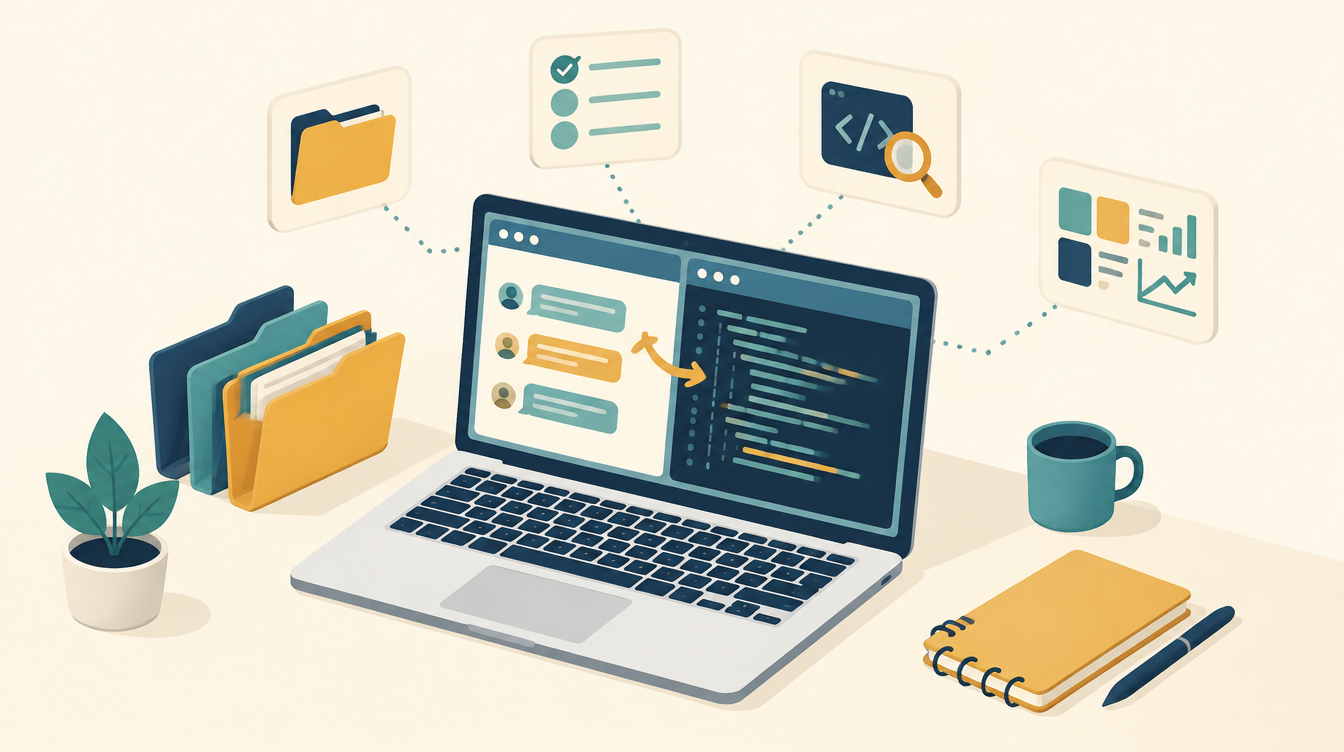
In Claude AI in Home Assistant I wrote about Claude as a voice assistant. But what I use Claude for most is something else: writing my Home Assistant automations with Claude, reviewing existing code, and building dashboards. Simply through the chat, without any connection to my house. In this article I show how I do that, so you can try it yourself, even if you have never worked with YAML or AI before.
My setup in short
- The Claude chat, not the integration in Home Assistant. Claude has no access to my house.
- Copy and paste. I paste a file into the chat, Claude returns a new version, and I put that into Home Assistant myself.
- Packages: one YAML file per topic, with everything that belongs to it.
- Dashboards in YAML mode, as files that Claude can read and write.
- Two checks before anything goes live: Claude tests the logic, and Home Assistant checks the configuration.
The copying and pasting is deliberate. I see every change before it ends up in my house, and Claude cannot break anything.
Step 1: work with packages
By default your automations live in automations.yaml, your template sensors in configuration.yaml and your helpers in the interface. Everything that belongs to one topic is spread across three places. That is hard to explain to Claude.
A package solves that. It is one file per topic, containing everything: helpers, template sensors, scripts and automations. Put this in your configuration.yaml:
homeassistant:
  packages: !include_dir_named packages
Then create a packages folder next to your configuration.yaml. Every .yaml file in that folder is a package. A simple example, packages/wasmachine.yaml (washing machine):
template:
  - binary_sensor:
      - name: Wasmachine draait
        unique_id: wasmachine_draait
        delay_on: "00:02:00"
        delay_off: "00:05:00"
        state: "{{ states('sensor.wasmachine_vermogen') | float(0) > 10 }}"

automation:
  - id: wasmachine_klaar
    alias: "Wasmachine klaar"
    triggers:
      - trigger: state
        entity_id: binary_sensor.wasmachine_draait
        from: "on"
        to: "off"
    actions:
      - action: notify.mobile_app_telefoon
        data:
          message: "De was is klaar."
Why this works so well with Claude:
- One file is the whole context. Paste the package and Claude sees everything that belongs to the topic, including the helpers and sensors the automation relies on.
- One file back. Claude returns the complete file, and you replace it in one go. No loose fragments that you have to insert in three places.
- The file is the truth. You cannot edit automations in a package through the interface. That feels awkward at first, but it stops you from changing something in the interface that gets overwritten again in the next round with Claude.
My sun shading, for example, lives in one package with helpers, two template sensors and the automations.
Step 2: give Claude the right context
The difference between a useful and a useless answer almost always lies in what you provide. Start a new conversation with:
- Your Home Assistant version. The syntax changes. Since 2024.10,
platform:in a trigger is calledtrigger:, andservice:is calledaction:. Without a version you sometimes get old examples. - The real entity names. Otherwise Claude makes them up. Copy them from Developer tools → States, or let a template list them (see below).
- The whole package you are talking about, not just the part you want to change.
- What you want, in plain language, including what must not happen.
Paste this template into Developer tools → Template. It gives a list of all entities in a domain, with their state and unit, which you can paste straight into the chat:
{% for s in states.sensor | selectattr('entity_id', 'search', 'wasmachine') %}
{{ s.entity_id }}: {{ s.state }} {{ s.attributes.unit_of_measurement | default('') }}
{% endfor %}
A first question to Claude looks roughly like this for me:
I use Home Assistant 2026.10 with packages.
Below is packages/wasmachine.yaml and the sensors I have.

I also want a notification if the washing machine is still running after 3 hours.
No notification at night between 23:00 and 07:00.
Return the complete file and briefly explain what you changed.

[package]
[list of sensors]
Always ask for the complete file. Then you replace it in one go and cannot insert anything in the wrong place.
Step 3: let Claude test
This is the step most people skip, and the one that gives me the most. Claude can run code itself in the chat. That lets it test a template before it is in Home Assistant. It mimics states() and now() in Python with Jinja2, and works through dozens of situations.
Ask for it explicitly:
Test the templates in this package with Jinja2 in Python.
Include at least:
- a sensor that is 'unavailable' or 'unknown'
- the boundary values (exactly on the threshold, just above, just below)
- the moment after a Home Assistant restart
Put the results in a table: scenario, expected, outcome.
For my sun shading that produced a table of nineteen scenarios, with exactly the edge cases you would only run into in real life after weeks. The test script is in the sun shading article.
Step 4: put it in Home Assistant and check
- Make a copy first of the old file, or a Home Assistant backup. Then you can always go back.
- Replace the file in the
packagesfolder, for example with the File editor or the Studio Code Server add-on. - Check the configuration via Developer tools → YAML → Check configuration. If you get an error, paste it back into the chat word for word.
- Reload what you changed on the same page: automations, template entities, helpers. If a new kind of integration is added, a restart is needed.
- Leave a new automation switched off at first and check the history for a day to see whether the sensors do what you expect. Only then switch it on.
Having existing code reviewed
You do not have to start with something new. One of the most useful things is having an existing automation checked, especially one that works “most of the time”. This is the question I use:
Check this package for errors and weak spots. Pay particular attention to:
- triggers on an entity without to:, which also react to attributes
- sensors that can be unavailable, and what happens then
- hard limits without hysteresis, causing something to flip back and forth
- actions that are sent again every time, even when nothing changes
- the mode of the automation
- units: W or kW, m/s or km/h
For each point give: what can go wrong, how serious it is, and the fix.
Don't change anything yet.
That list comes straight from my own mistakes. The old sun shading had five of them at once, and a W versus kW unit error made EMHASS think my house used 6 kW at night. “Don’t change anything yet” matters: understand first, only then adjust.
Having dashboards built
Normally you build dashboards with the mouse in the interface. That works, but it is hard to show to Claude. That is why I put my dashboards in YAML mode: then a dashboard is simply a file. Add this to configuration.yaml:
lovelace:
  dashboards:
    dashboard-energie:
      mode: yaml
      title: Energie
      icon: mdi:flash
      show_in_sidebar: true
      filename: dashboards/energie.yaml
The name of the dashboard (here dashboard-energie) must contain a hyphen. After a restart it appears in the sidebar. The file dashboards/energie.yaml starts like this:
title: Energie
views:
  - title: Overzicht
    path: overzicht
    cards:
      - type: tile
        entity: sensor.batterij_soc
      - type: history-graph
        title: Batterij vandaag
        hours_to_show: 24
        entities:
          - sensor.batterij_soc
You see changes to the file after refreshing the page; a restart is only needed when you add a new dashboard. Tips for your question to Claude:
- Say which cards you have. Only the standard cards, or cards from HACS as well? Otherwise you get a card that doesn’t exist on your system.
- Paste a screenshot of your current dashboard, or of an example you like. Claude can read images.
- Describe the use, not just the content. “On my phone I want to see at a glance whether the battery is charging and what the price is right now” works better than “make an energy dashboard”.
Two examples from my own house
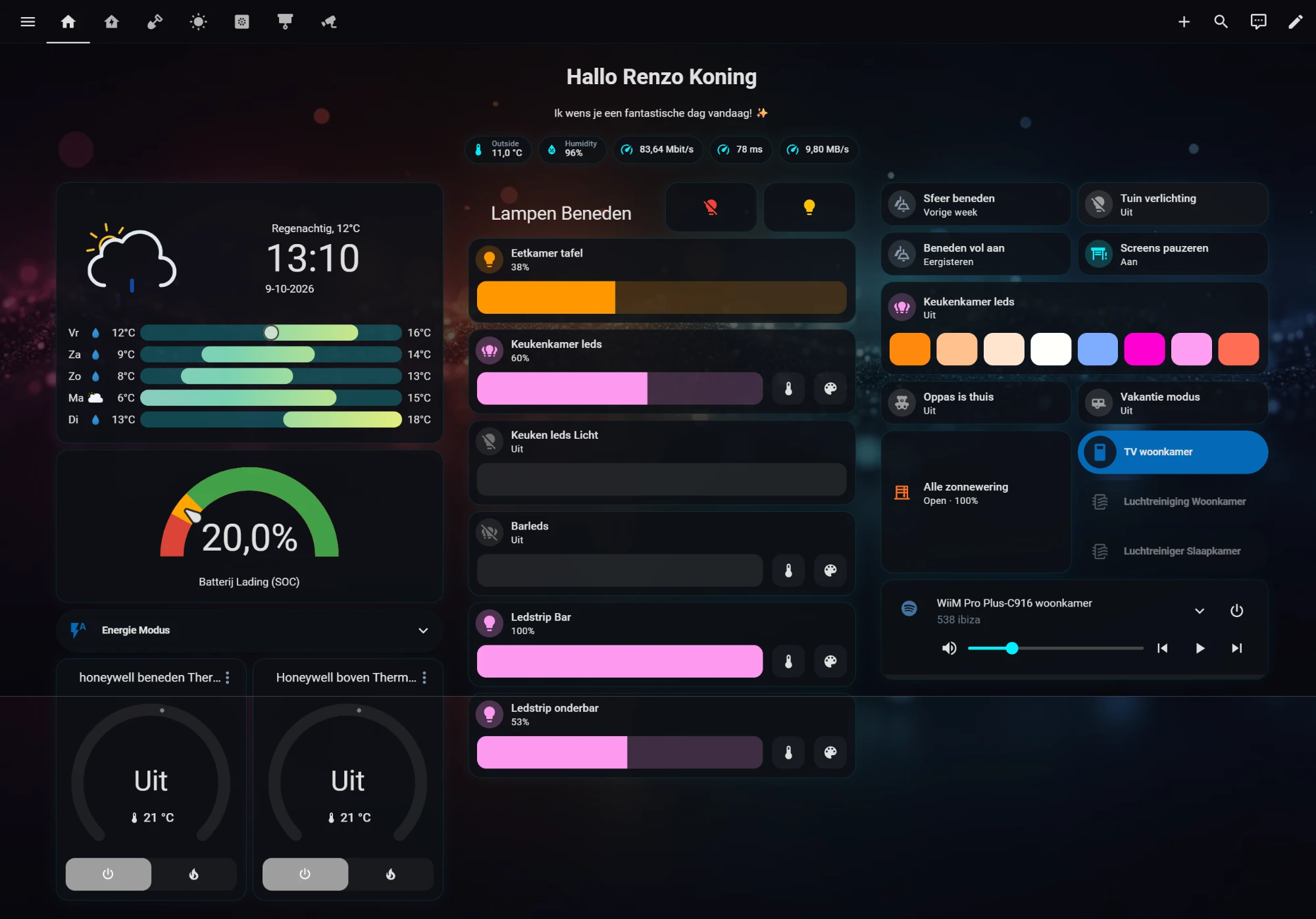
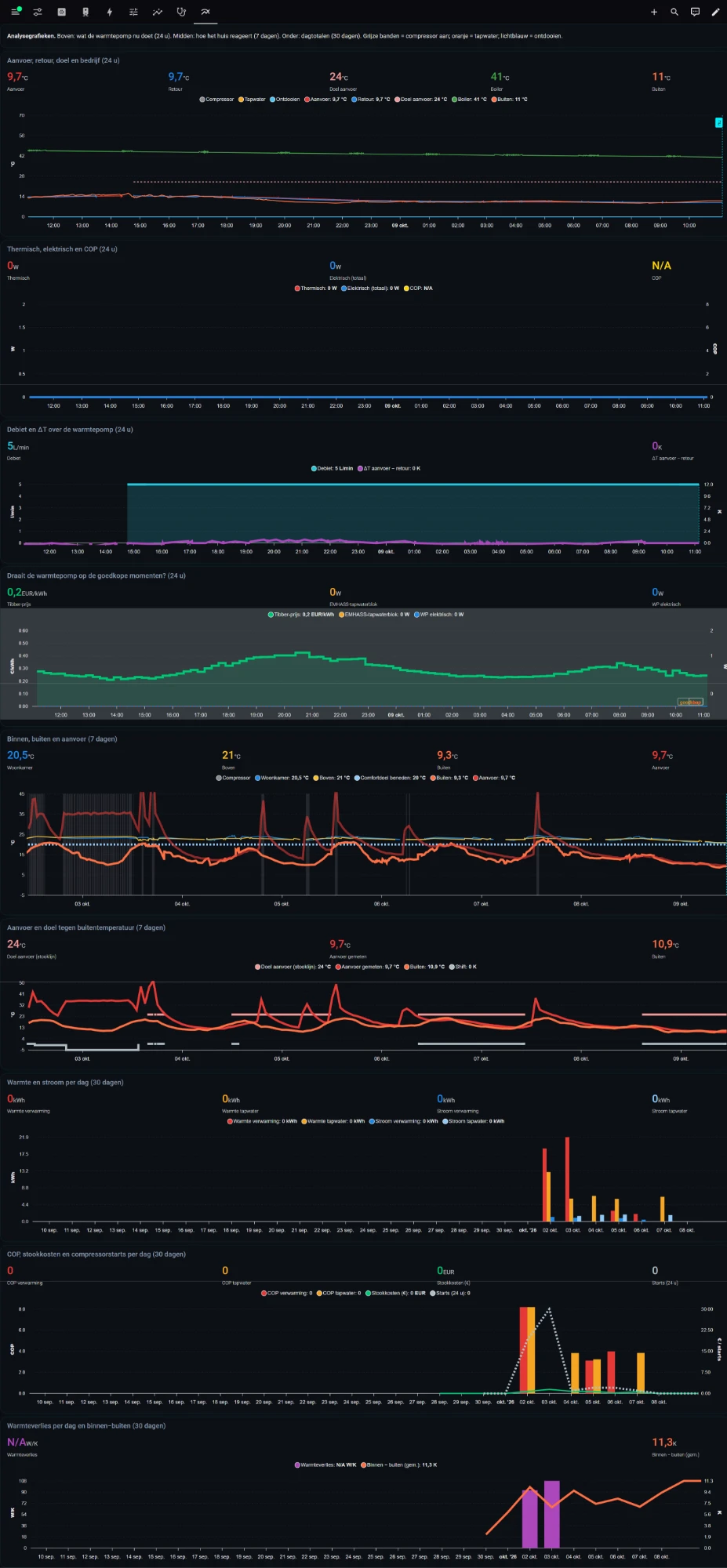
This is what two of my dashboards look like, both made with Claude in this way. The first is the everyday dashboard: weather, the charge of the home battery, lighting, scenes, the sun shading and the music. The second is an analysis dashboard for the heat pump. Every graph answers one question, such as “does the heat pump run at the cheap moments?”, and at the top one sentence explains how to read the colours. That comes straight from the tip above: describe what you want to know, not which cards you want.
What to watch out for
- Don’t paste secrets. No
secrets.yaml, no tokens, passwords, external IP addresses or your home address. Replace them with a placeholder. - Claude sometimes makes up entities or options. Especially if you don’t provide them. The config check catches some of it, but a wrong entity name is valid YAML. Check that yourself.
- One topic per conversation. A long conversation about five packages loses the thread. Rather start again and paste the latest version.
- You remain responsible. Read what you paste, especially for anything that switches. For critical control, such as a battery or heat pump, the same applies as in the previous article: Claude may help write the code, but the code itself must be predictable and tested.
Summary: Home Assistant automations with Claude
- Put your configuration in packages: one file per topic.
- Give Claude your version, your real entity names and the whole package.
- Ask for the complete file back, and for tests of the templates.
- Make a copy, replace, check the configuration and reload.
- Let new automations watch along for a day before they switch anything.
No Home Assistant yet? Start with What is Home Assistant?
What I use
- MeLE Quieter 4C mini PC: this is what my Home Assistant runs on.
- For beginners, the Home Assistant Green is the easiest start. I don’t use it myself.
This article contains affiliate links. As an Amazon Associate I earn from qualifying purchases. The price stays the same for you.
This works in my situation: the Claude chat, copy and paste, packages and dashboards in YAML mode. Syntax and menus change with each Home Assistant version. Check it against your own documentation, and always read what you paste. Status: October 2026.
Leave a Reply