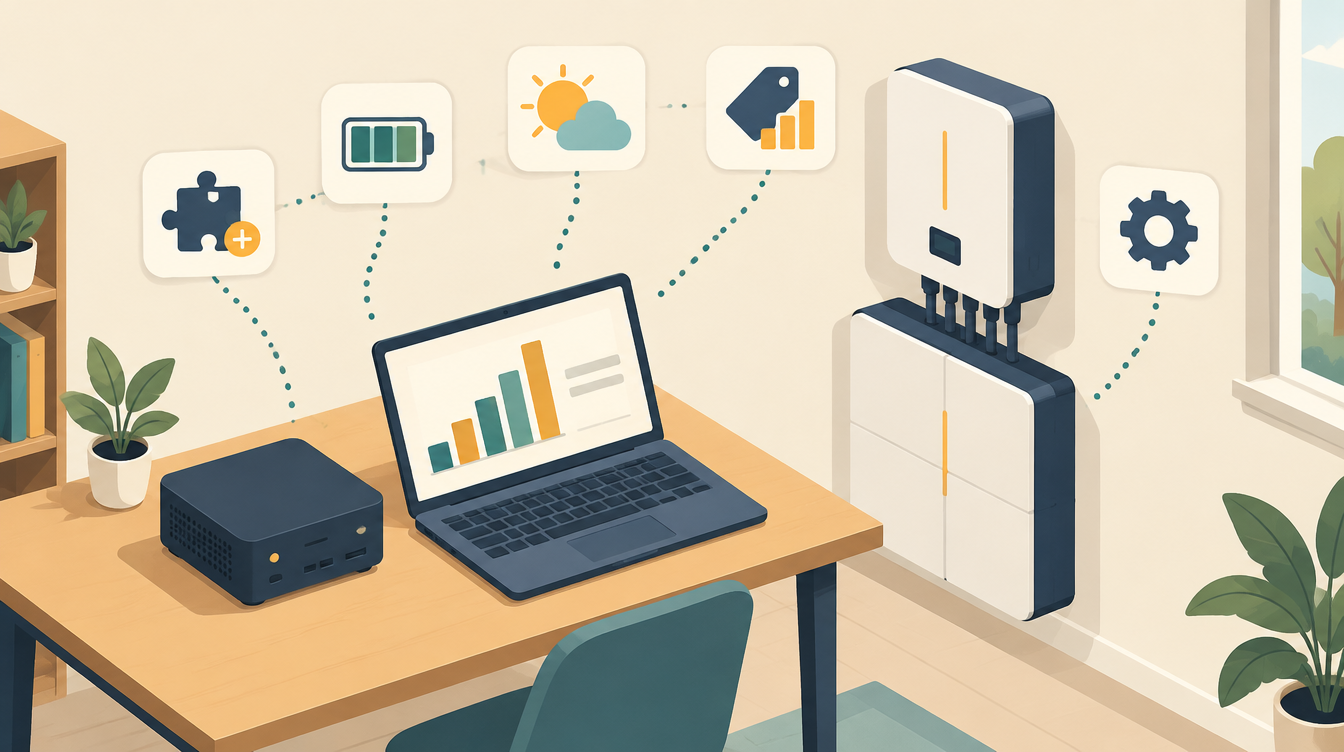
You have a home battery, solar panels and a dynamic energy contract, and Home Assistant is already running. Now you want the battery to choose the cheapest moment to charge and discharge by itself, instead of following a fixed night-time rule. That is exactly what EMHASS does. In this article you will read how to install EMHASS and get it working for the first time.
What EMHASS is exactly, and why it is smarter than a fixed rule, you can read in What is EMHASS, and why I use it. This article is about the installation itself. The in-depth configuration with a real Deye inverter is in EMHASS and Deye: controlling a home battery on quarter-hourly prices.
What you need
Check these four things before you start:
- Home Assistant is already running, with the Supervisor (needed for add-ons) or in Docker. No Home Assistant yet? Start at What is Home Assistant?
- Your inverter has an integration in Home Assistant. You need to be able to read the state of charge (SoC) and the charge and discharge power, and preferably control them too.
- A dynamic energy contract, for example Tibber, ANWB Energie or another supplier with quarter-hourly or hourly prices. Without price differences, EMHASS has nothing to optimise.
- Your battery’s specifications: capacity in Wh, maximum charge and discharge power in W, and the efficiency if you know it.
Not sure whether a battery pays off in your situation at all? Work it out first with the home battery calculator (in Dutch). It takes three minutes, and it stops you spending time optimising something that will never pay for itself.
Step 1: install the EMHASS add-on
EMHASS is not in the add-on store by default. You add the repository first.
- Go to Settings → Add-ons → Add-on store.
- Open the menu at the top right (the three dots) and choose Repositories. Add
https://github.com/davidusb-geek/emhass-add-on. - Search for “EMHASS”, click Install and wait until the add-on is ready.
- Start the add-on and open the web UI via Open Web UI.
Are you running Home Assistant without the Supervisor, for example Core in Docker? Then you run EMHASS as a separate Docker container next to Home Assistant. It works the same; only the installation differs. See the official documentation.
Step 2: configure your battery
In the EMHASS web UI, you enter your battery’s key data under the configuration. These are the most important settings:
| Setting | What | Example |
|---|---|---|
set_use_battery | include the battery in the optimisation | on |
battery_nominal_energy_capacity | capacity in Wh | 10000 (10 kWh) |
battery_charge_power_max / battery_discharge_power_max | maximum power in W | 5000 |
battery_minimum_state_of_charge / battery_maximum_state_of_charge | how empty and how full, as a fraction | 0.10 and 0.95 |
battery_charge_efficiency / battery_discharge_efficiency | efficiency per direction | 0.93 |
optimization_time_step | time step in minutes | 15 with quarter-hourly prices |
costfun | what EMHASS optimises for | profit |
Watch the efficiency: it is per direction. With 93% charging and 93% discharging, you keep roughly 86% over the full round trip. If you enter 90% here and mean the full round trip, EMHASS calculates too optimistically.
Start with cautious values. You can refine them later, once you see how EMHASS plans. For comparison: my own values are in a table on the EMHASS page.
Step 3: prices, solar forecast and consumption
To make a plan, EMHASS needs three kinds of data:
- Energy prices. The usual way: you send the prices along with every run in a payload, as a list with one value per time step (
load_cost_forecastfor import,prod_price_forecastfor export). You get the prices from your supplier’s integration, for example Tibber, or from an ENTSO-E integration in Home Assistant. - Solar forecast. EMHASS can fetch this itself via a free service such as Open-Meteo or Forecast.Solar. For that, you enter your panels: power, tilt angle and orientation.
- Expected consumption. EMHASS has a built-in naive load forecast. It takes your consumption from the past day as the prediction for tomorrow. For this, you specify the sensor for your consumption without the deferrable loads.
For a first setup, the built-in solar forecast and the naive load forecast are more than enough. Only when the plan is structurally off does it pay to refine them. See the beginner mistakes below.
Step 4: the first optimisation
With the basic configuration done, you let EMHASS calculate manually the first time:
- Open the add-on’s web UI.
- Choose the day-ahead optimisation (
dayahead-optim). - Wait until the chart and the table appear.
You now see the planned battery power, the expected state of charge and the planned grid power for each time step. Without a payload, EMHASS calculates with the fixed off-peak and peak tariffs from the configuration. That is fine for testing, but not yet for controlling anything.
After that, you let Home Assistant do the runs. A simple start with two shell_commands: one that calculates, and one that publishes the plan as sensors.
shell_command:
  emhass_dayahead: "curl -s -X POST -H 'Content-Type: application/json' -d '{}' http://localhost:5000/action/dayahead-optim"
  emhass_publish: "curl -s -X POST -H 'Content-Type: application/json' -d '{}' http://localhost:5000/action/publish-data"
After publish-data, the plan and the forecasts are available as sensors in Home Assistant, such as sensor.p_batt_forecast (planned battery power) and sensor.soc_batt_forecast (expected state of charge). You can put them in a chart and use them in automations. Later, you replace the empty {} with a payload containing your prices.
Important: EMHASS does not control anything itself. It only publishes a plan. To let that plan actually control your battery, you need automations, or your own translation layer, that turn the EMHASS sensors into commands for your inverter. That is where most of the time goes. How I did that for a Deye is described in EMHASS and Deye.
Common beginner mistakes
These things often go wrong in practice with a first setup. I have run into every one of them myself.
- Prices shifted by a quarter of an hour. Filter on the start of the current quarter-hour, not on
now(). Otherwise all your prices are a quarter of an hour too early. - A horizon that is too short. With only 24 hours ahead, EMHASS plans to empty the battery every evening: anything beyond the horizon is worthless in its eyes. A longer horizon, as soon as you have tomorrow’s prices, prevents that. See the EMHASS horizon: from 24 to 36 hours.
- A polluted load forecast. If EMHASS learns from consumption that includes, say, the EV charger, it plans for a house that does not exist. Keep the base load clean of large, irregular consumers. See EMHASS thought my house used 6 kW at night.
- A longer horizon with the naive forecast. It only works well with exactly 96 steps. Beyond that, the consumption pattern shifts. See the naive load forecast shifts.
- Calculating with a made-up SoC. After a restart, the inverter is sometimes not available yet. Only let EMHASS run when the state of charge is a real number. See EMHASS plans from a made-up SoC.
- No safe mode. If the add-on fails or the plan becomes outdated, your automation must fall back to a safe setting, and not keep executing the last plan.
The full list of incidents, with the exact cause of each mistake, is on Lessons from practice (in Dutch).
Where to go from here
With a working basic installation, the foundation is in place. These are the steps that make the difference between “it works” and “it works reliably”:
- Prices in the payload, aligned to the current quarter-hour, so EMHASS plans on real prices.
- A longer horizon as soon as tomorrow’s prices are known: from 24 to 36 hours.
- Your own, clean load forecast instead of the built-in naive forecast.
- Consumers that can wait, such as a hot water cylinder, as a deferrable load. See the hot water block that kept shifting all day.
- A translation layer that safely passes the plan to your inverter, with a safe mode.
The full configuration of a working installation, with a Deye inverter, Tibber prices and an LG heat pump, is in EMHASS and Deye: controlling a home battery on quarter-hourly prices.
What I use
- MeLE Quieter 4C mini PC: this runs Home Assistant and the EMHASS add-on.
- Waveshare USB to RS485 adapter: with this, Home Assistant reads and controls the Deye inverter via Modbus.
- No Home Assistant yet? For beginners, the Home Assistant Green is the easiest start. I do not use it myself.
This article contains affiliate links. As an Amazon Associate I earn from qualifying purchases. The price stays the same for you.
This works in my situation: EMHASS as an add-on in Home Assistant, with a Deye inverter and Tibber prices. These steps are a general installation and do not apply to every situation; setting names may differ between EMHASS versions. Check it against the official EMHASS documentation and the documentation of your own inverter. Status: October 2026.
Leave a Reply