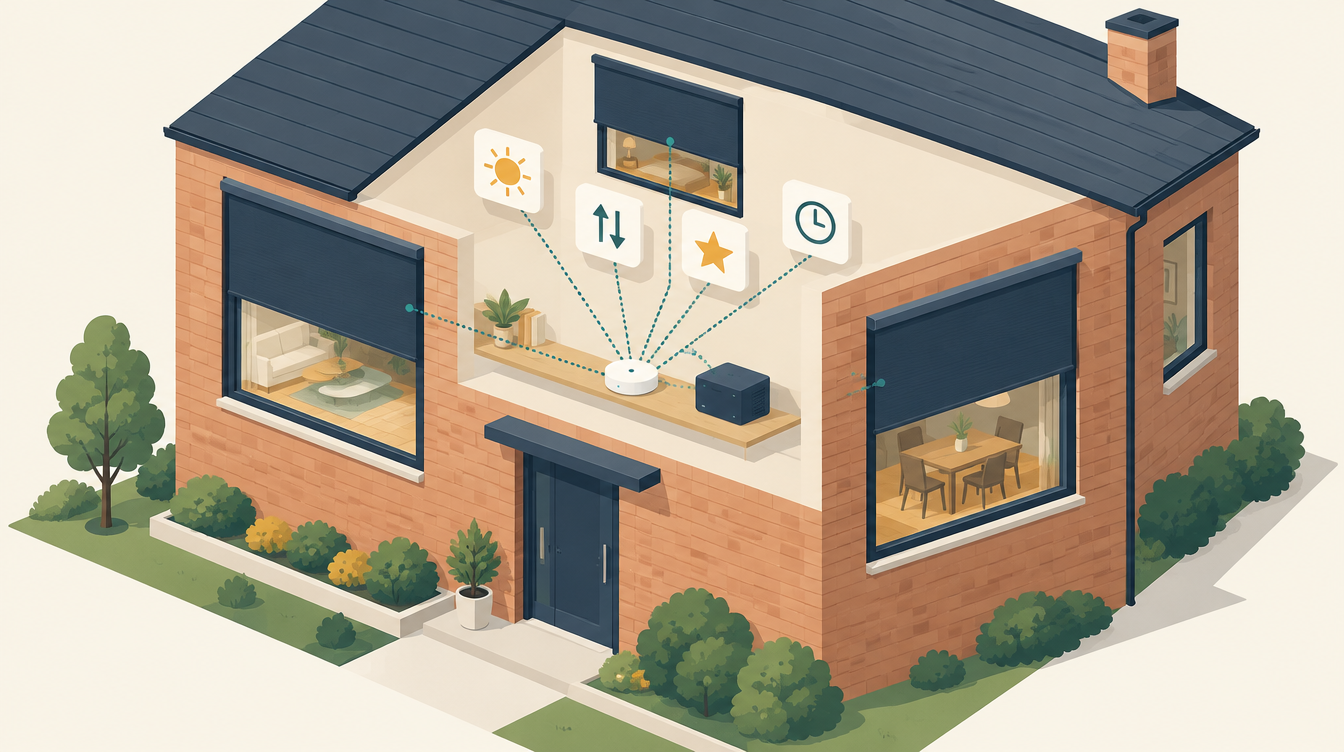
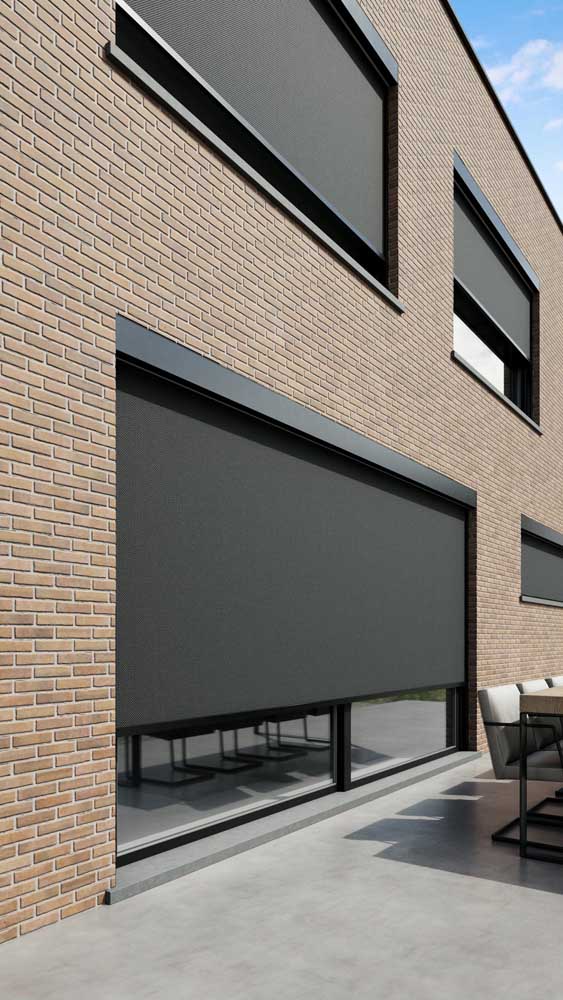
Connecting Somfy screens to Home Assistant is easier than you think. We had new outdoor screens from Hardol installed, with Somfy motors and a Somfy Connexoon as the hub. Within a few minutes they were in Home Assistant, with up, down and the favourite position on the dashboard. This post shows you how.
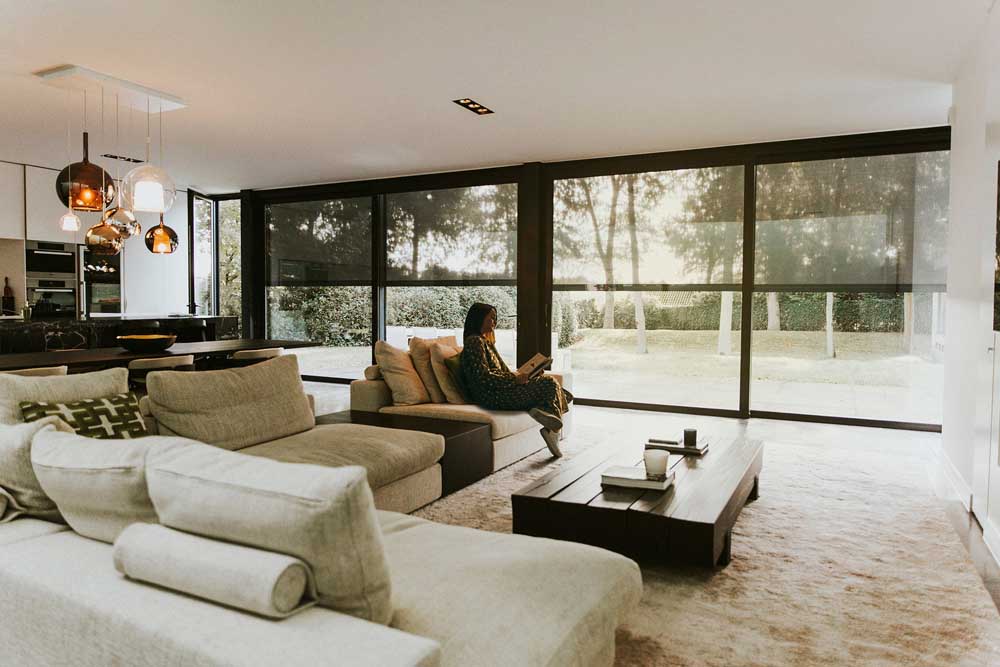
What you need
- Screens with a Somfy motor. Hardol and many other brands use Somfy motors. There are two types: io (with position feedback) and RTS (without feedback).
- A Somfy hub. In our case a Connexoon. A TaHoma or TaHoma Switch works the same way.
- A Somfy account, the account you use to log in to your hub’s app.
- Home Assistant. See What is Home Assistant? if you still have to get started.
Good to know: in Home Assistant the integration is called Somfy, but it is really the Overkiz integration. Overkiz is the platform behind Somfy’s hubs. So if you search for “Somfy”, you end up at Overkiz. That’s the right one.
Step by step: Somfy in Home Assistant
1. Screens in the Somfy app
First make sure all screens are in your hub’s app and work there. In our case the installer did that during installation. Give each screen a clear name right away, such as “Living room front” or “Dining room”. Home Assistant takes over those names, and with clear names voice commands and automations work much better later on.
2. Adding the integration
- In Home Assistant, go to Settings → Devices & services. Often the hub is already listed under Discovered. If so, click Add.
- Not there? Click Add integration and search for Somfy.
- Choose the server or hub that matches yours, in our case Connexoon / TaHoma from Somfy.
- Log in with the e-mail address and password of your Somfy account.
- Home Assistant finds all screens and asks, for each device, which room it is in.
That’s it. No YAML needed and nothing to install.
Cloud or local?
When you log in with your Somfy account, control goes through Somfy’s cloud. That works fine, but Home Assistant then only fetches the position every 30 seconds, and without internet the screens don’t respond to Home Assistant.
A Connexoon, TaHoma v2, TaHoma Beecon and TaHoma Switch can also work locally. To do that, you enable developer mode in the app (tap your hub’s PIN seven times), create a token and choose the local API in Home Assistant. The position then refreshes every 5 seconds and everything works without internet. You can still switch later, via Reconfigure on the integration.
What you get in Home Assistant
For each screen you get a cover entity with up, stop and down. There is also a My position button: the favourite position you saved under the “my” button on the remote. For screens that’s handy, for example halfway, so some light still comes in.
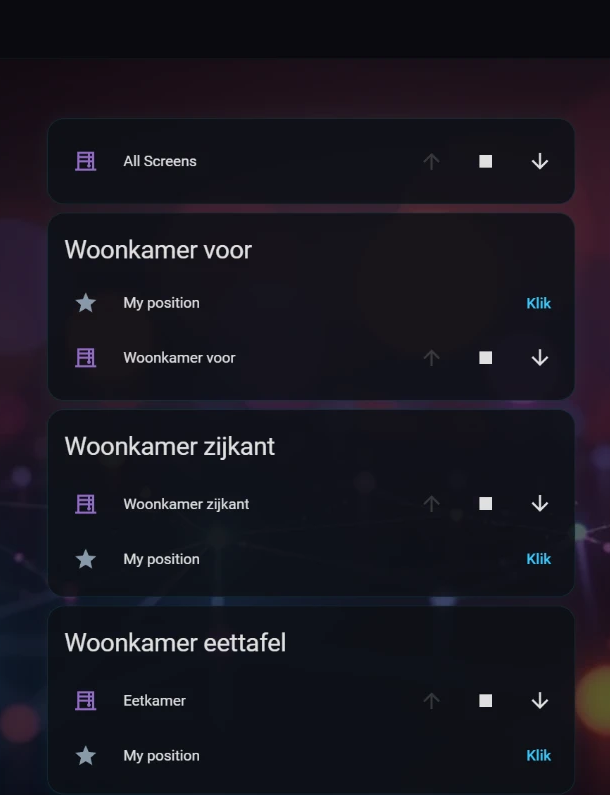
To control all screens at once, use a group. Go to Settings → Devices & services → Helpers → Create helper → Group → Cover group and tick all screens. You then get one extra cover that moves all screens up or down at the same time.
io or RTS: watch the feedback
- io motors report their position back. If you operate a screen with the remote, Home Assistant sees that too.
- RTS motors report nothing back. Home Assistant only knows what it sent itself. If you also use the remote, the position in Home Assistant isn’t always right. In that case, build your automations on commands (down, up, My), not on the position.
A first automation
Screens are most useful when they lower by themselves before it gets warm inside. A simple start: put the living room screens in the My position when it is warmer than 24 °C outside and the sun is high. The entity names are examples; check what they are called in your own installation.
automation:
  - id: screens_woonkamer_zon
    alias: "Living room screens to My in warm weather"
    mode: single
    trigger:
      - platform: numeric_state
        entity_id: sensor.buitentemperatuur
        above: 24
    condition:
      - condition: numeric_state
        entity_id: sun.sun
        attribute: elevation
        above: 25
    action:
      - action: button.press
        target:
          entity_id:
            - button.woonkamer_voor_my_position
            - button.woonkamer_zijkant_my_position
If you control many screens at once, keep in mind that the hub has a short queue of about ten commands. Home Assistant bundles commands that come shortly after each other, but with a lot of screens at once a single command can get stuck.
Note: a simple automation like this with one hard temperature threshold starts flip-flopping in autumn, as soon as the heating kicks in. Our screens went up and down all day. You can read how I solved that with hysteresis, a separate safety layer for wind and rain and a manual mode that expires by itself in Sun shading with hysteresis in Home Assistant.
Tips
- Give the hub a fixed IP address if you connect locally. With the IP address instead of the hostname, the screens are briefly unreachable less often.
- Keep the remotes. Home Assistant doesn’t replace them, it works alongside them. Handy if Home Assistant is ever unreachable.
- Set the My position on the remote, not in Home Assistant. The button in Home Assistant only recalls the position stored in the motor.
This works in my situation: Hardol screens with Somfy motors, a Somfy Connexoon and Home Assistant. Menus, entity names and the behaviour of your own motors may differ. Check it against your own documentation.
Leave a Reply